
How to Create and Use Scorecards in Tenor
Why Scorecards Matter
Scorecards allow Admins to evaluate user performance within custom scenarios in a consistent, measurable way. Whether you’re assessing communication skills, behavioral competencies, or readiness to move forward in a learning path, Scorecards make it simple to standardize feedback and track growth across your organization.
With clear grading criteria and flexible scoring options (True/False or 1–5 Likert scales), Scorecards help teams move from subjective impressions to data-driven insights about learning and performance.
How to Create and Edit a Scorecard
📝 Note: Only Tenor Admins and Instructional Designers have access to Scorecard creation and editing.
Step 1: Navigate to Scorecards
- Log into your Tenor
- Navigate to the Admin Dashboard.
- Click the Scorecards tab.
Step 2: Create a New Scorecard
-
Click Create Scorecard in the top right corner.
Enter a name and description that clearly define the purpose of the Scorecard (for example, Manager Feedback Coaching Assessment).
Under Criterion Details, add each evaluation item:
- Criterion Name: What specific behavior or skill is being evaluated?
- Grading Scheme: Choose either Yes/No or a 1–5 Likert scale, depending on how you want reviewers to score this item.
- Scoring Instructions: Provide clear guidance on how to interpret and apply the scoring scale.
- Add as many Criterion as needed to fully capture your evaluation areas.
- Click Save in the top right corner to finalize your new Scorecard.
💡 Scoring Logic
- Yes/No:
- Yes = Pass
- No = Fail
- 1-5 scale:
- 1-3 = Fail
- 4-5 = Pass
Step 3: Assign Your Scorecard to a Scenario
-
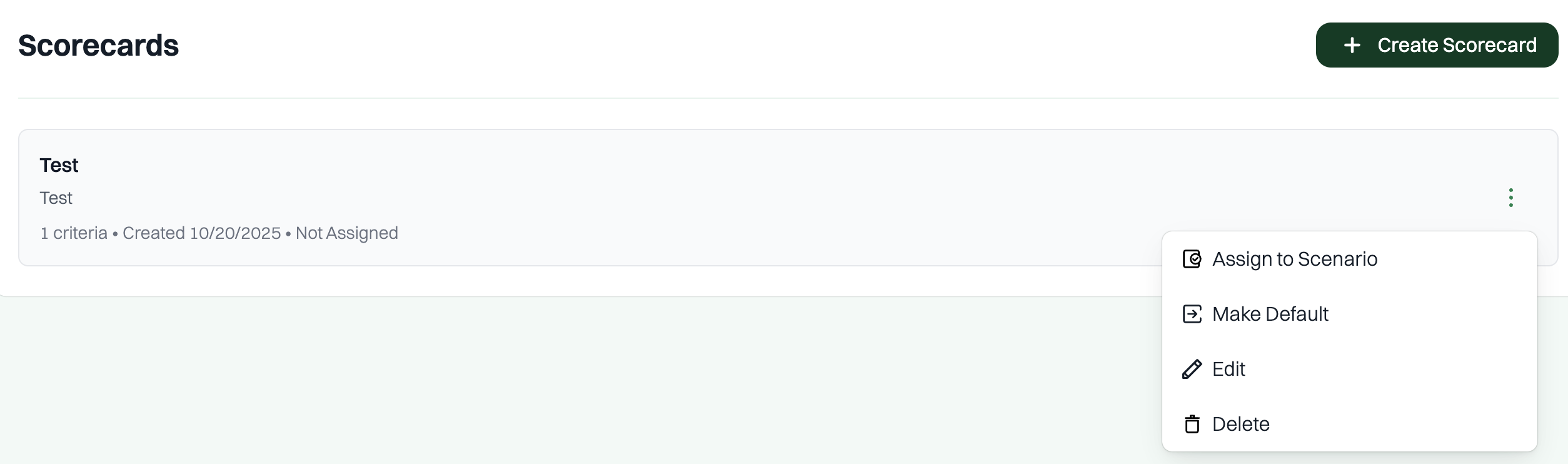
From the Scorecards list, click the ellipsis (⋯) icon to the right of your Scorecard.
Select Assign to Scenario and choose the scenario you’d like to link the Scorecard to.
(Optional) You can also:
- Set as Scenario Default: Make this Scorecard the default grading template for that scenario.
- Edit: Reopen and adjust the Scorecard’s details or criteria.
- Delete: Remove a Scorecard entirely if it’s no longer needed.

Editing an Existing Scorecard
To make updates:
- Navigate to Admin Dashboard → Scorecards.
- Select the Scorecard you want to modify.
- Click Edit, adjust the name, description, or Criterion details as needed, and Save your changes.
Set a Scorecard as Default
- Navigate to Admin Dashboard → Scorecards.
- Click the three dots (⋮) next to the Scorecard you want to set as default.
- Select Make Default.
⭐ Pro Tips
- Use consistent language across all Scorecards to make reporting and analysis easier.
- Align Scorecard criteria with your organizational competencies or learning outcomes for stronger insights.
- Keep scoring instructions specific and behavioral — clear expectations lead to consistent evaluations.