
Integrating and using the Tenor MS Teams app
Here's how your organization can seamlessly integrate Tenor into Microsoft Teams. This will allow your team to engage directly with the Tenor coach on MS Teams, where they can ask questions and request personalized coaching.
-
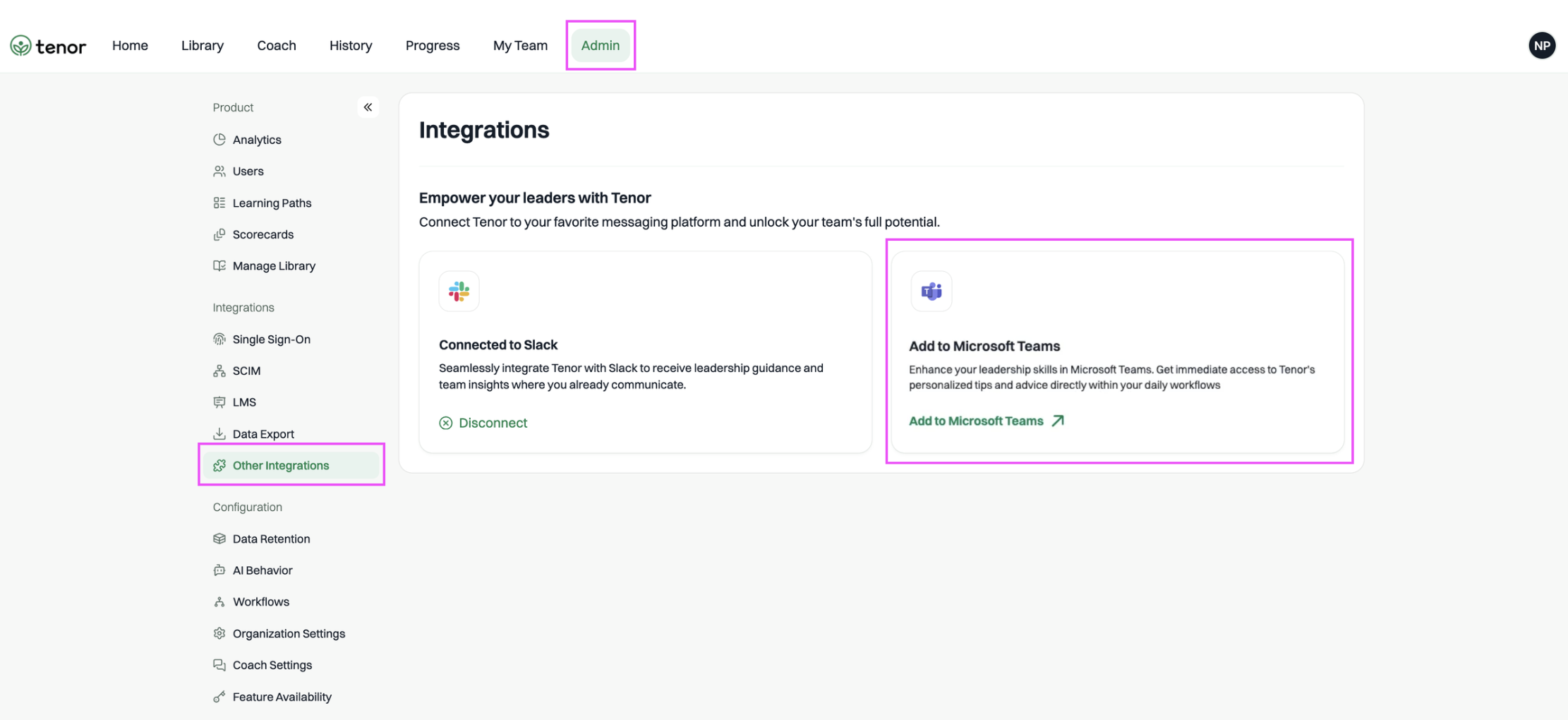
Log in to Tenor as an organization administrator and go to integrations
-
Click “Add to Microsoft Teams” to start the integration process. This will ask you to provide consent for the teams app:
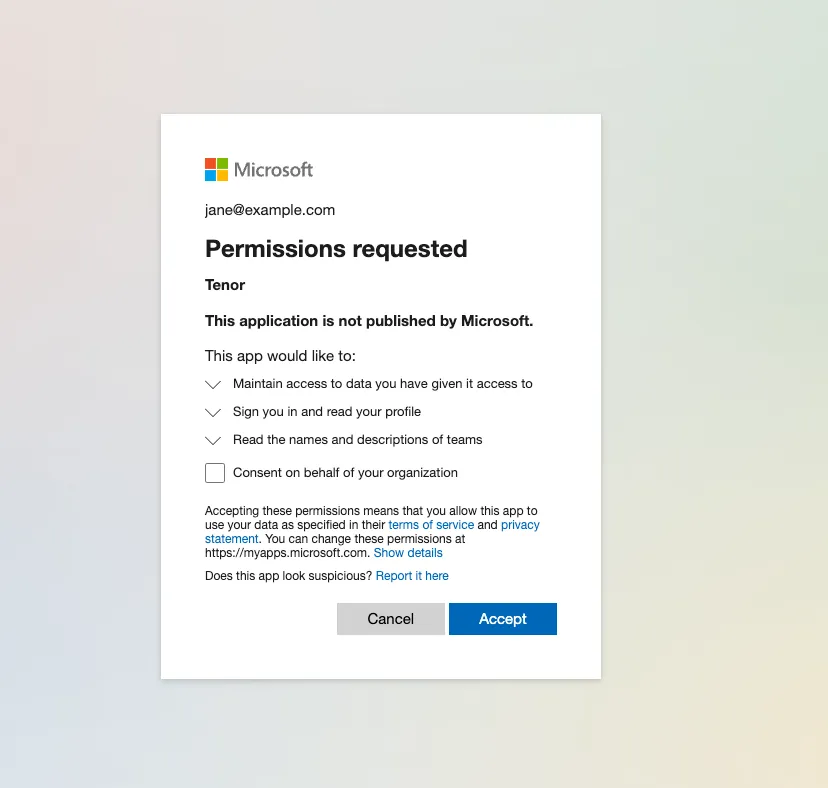
-
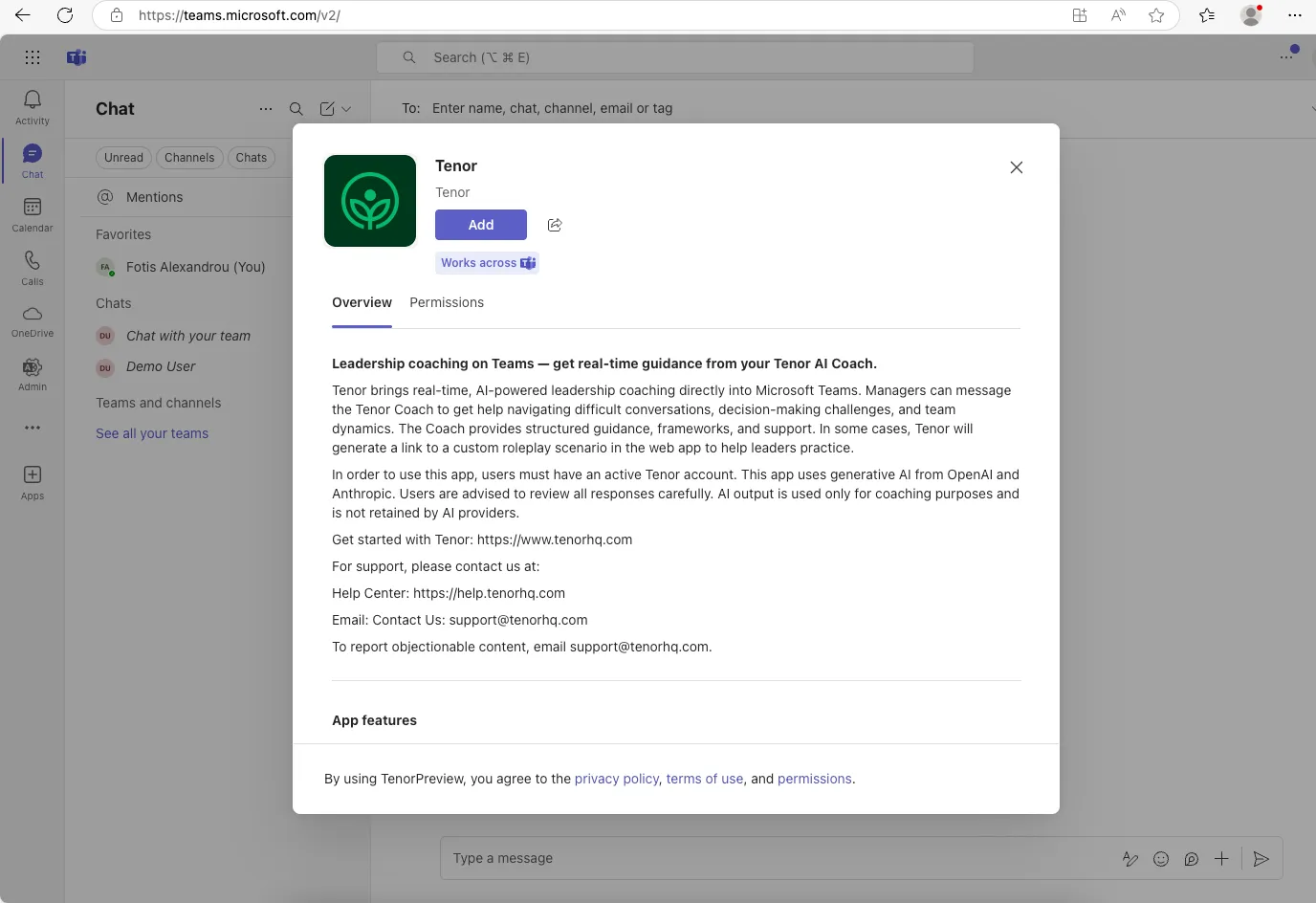
Once this is done, you’ll get redirected to the app on Teams:
-
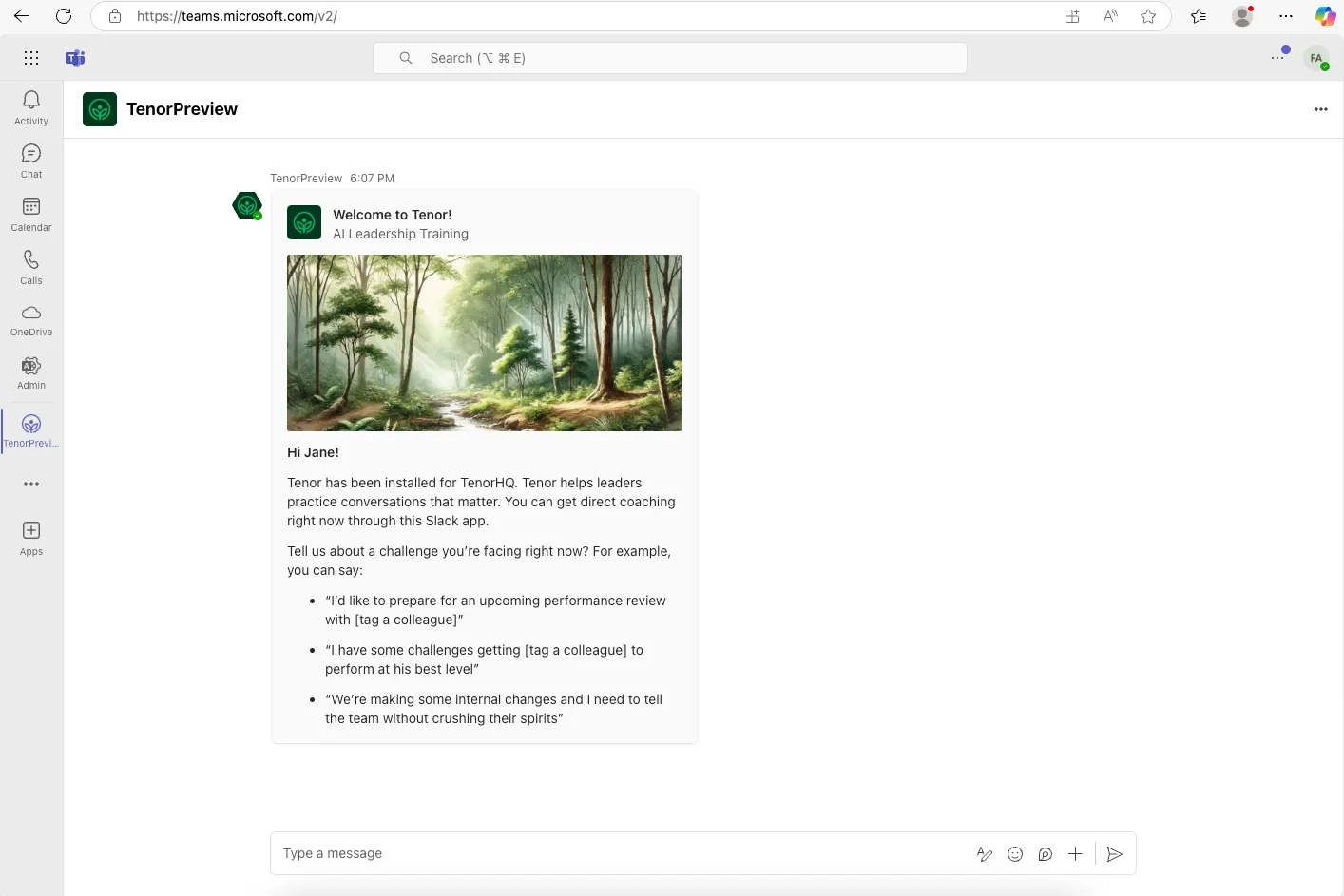
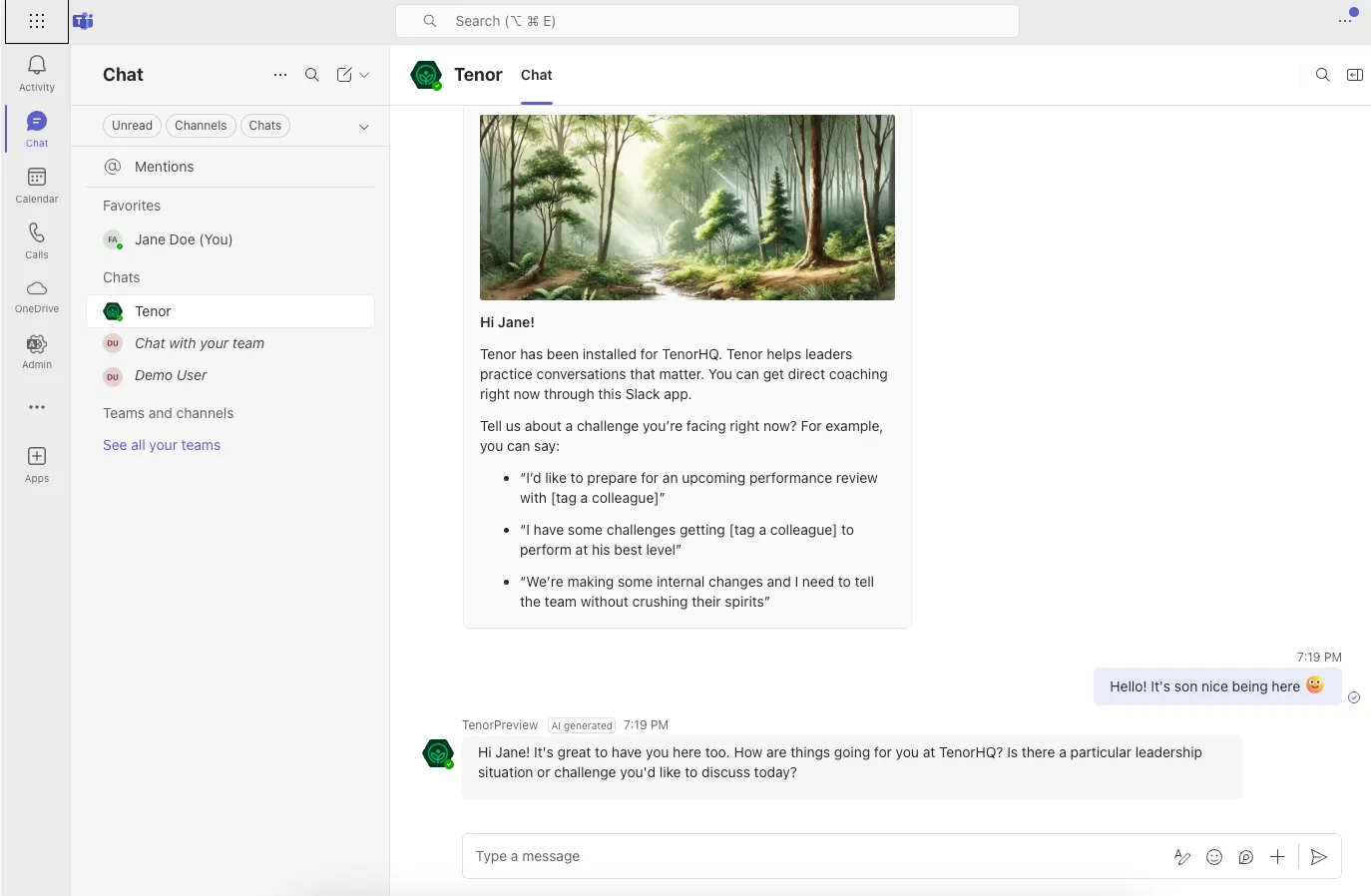
Click “Add” and the app will be installed to your tenant, opening a private conversation with the Coach right within Teams.
-
You're all set! You can now start asking the Tenor Coach for personalized coaching advice!
Adding the Tenor app on Microsoft Teams as a non-admin
-
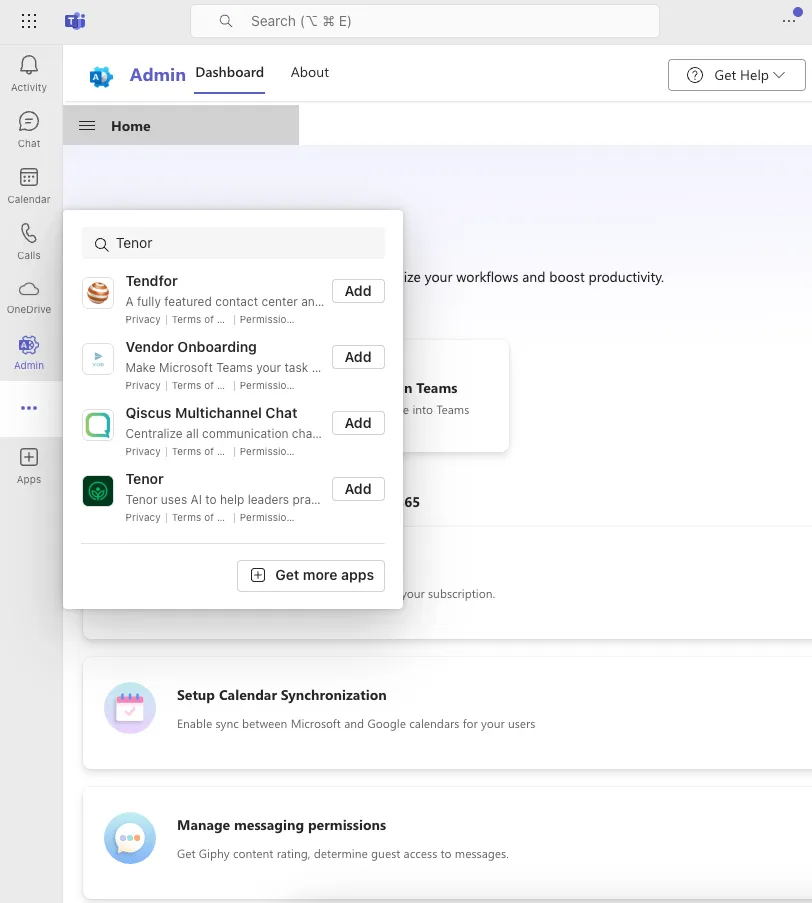
Go to Teams App Search button and search for Tenor
-
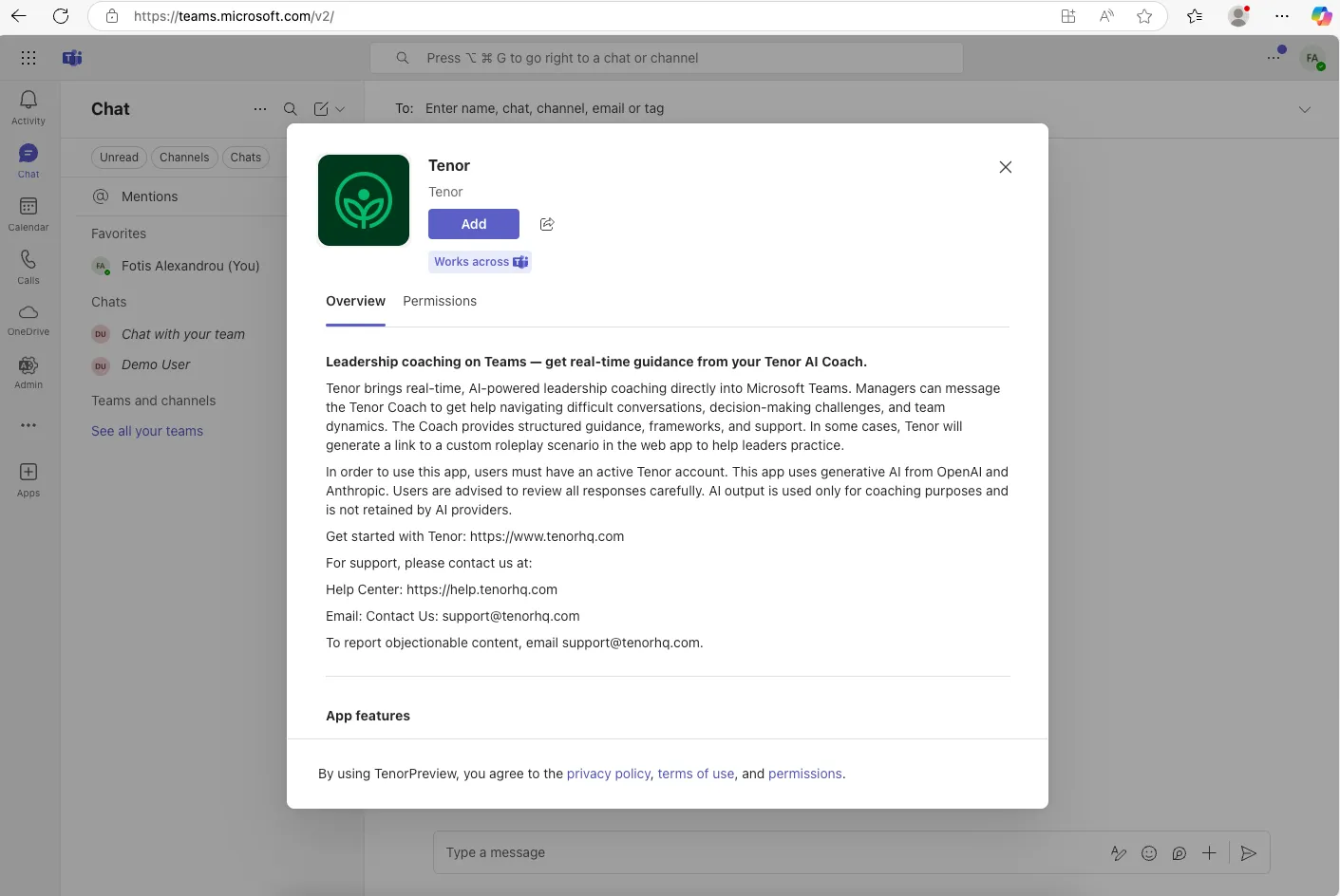
If your organization admins have enabled the Tenor integration, you’ll be able to see the Tenor app available. Click on it and the Tenor app information dialog will open, asking you to add the app into Microsoft Teams.
-
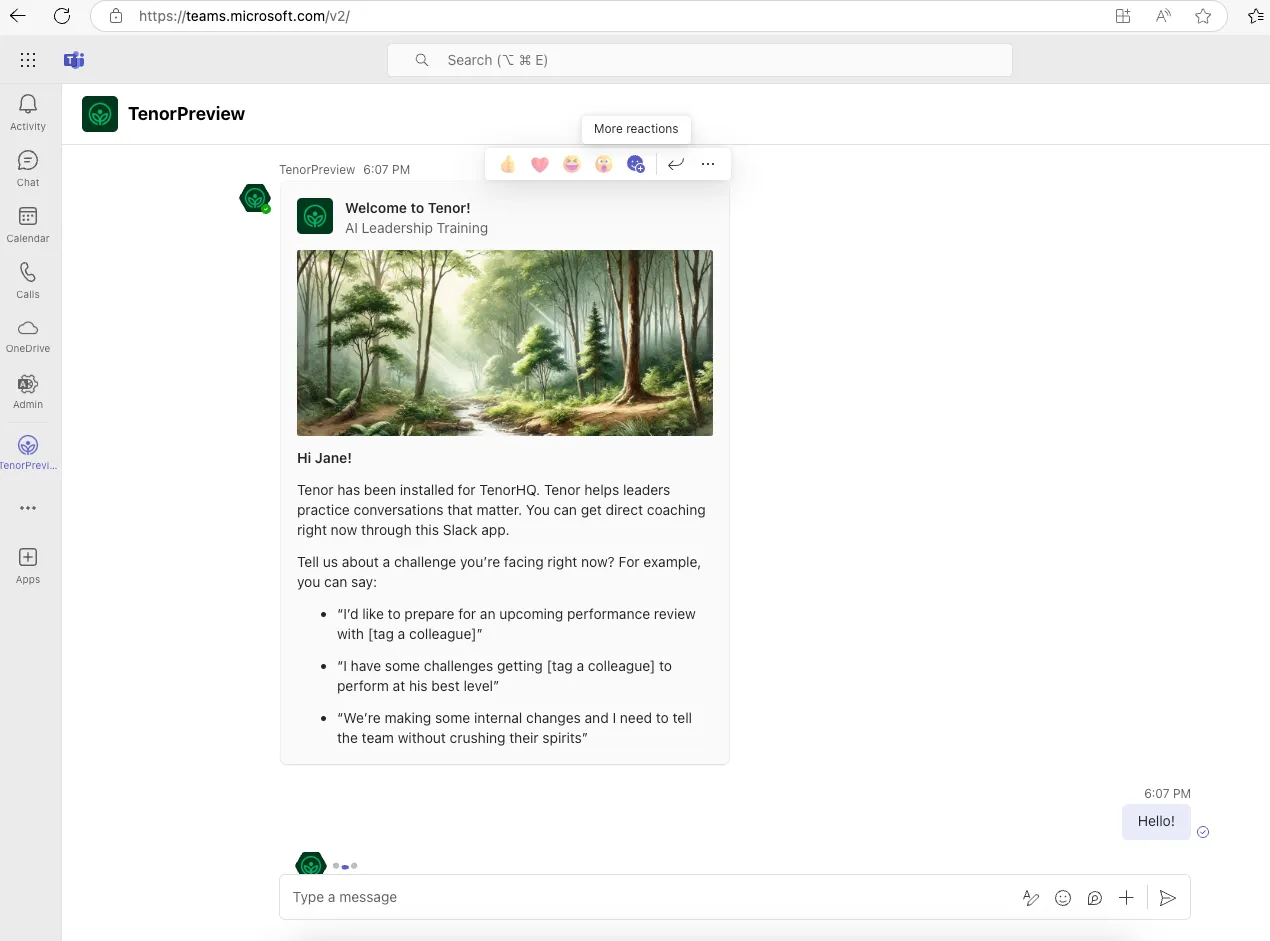
Click “Add” and enjoy your private conversation with the Tenor Coach!
📊 A note on analytics: Any Coach usage that happens through Microsoft Teams or Slack is fully captured in the Analytics dashboard within Tenor. There's no need to log into the Tenor web app for your conversations to be tracked — all interactions are recorded regardless of where they take place.